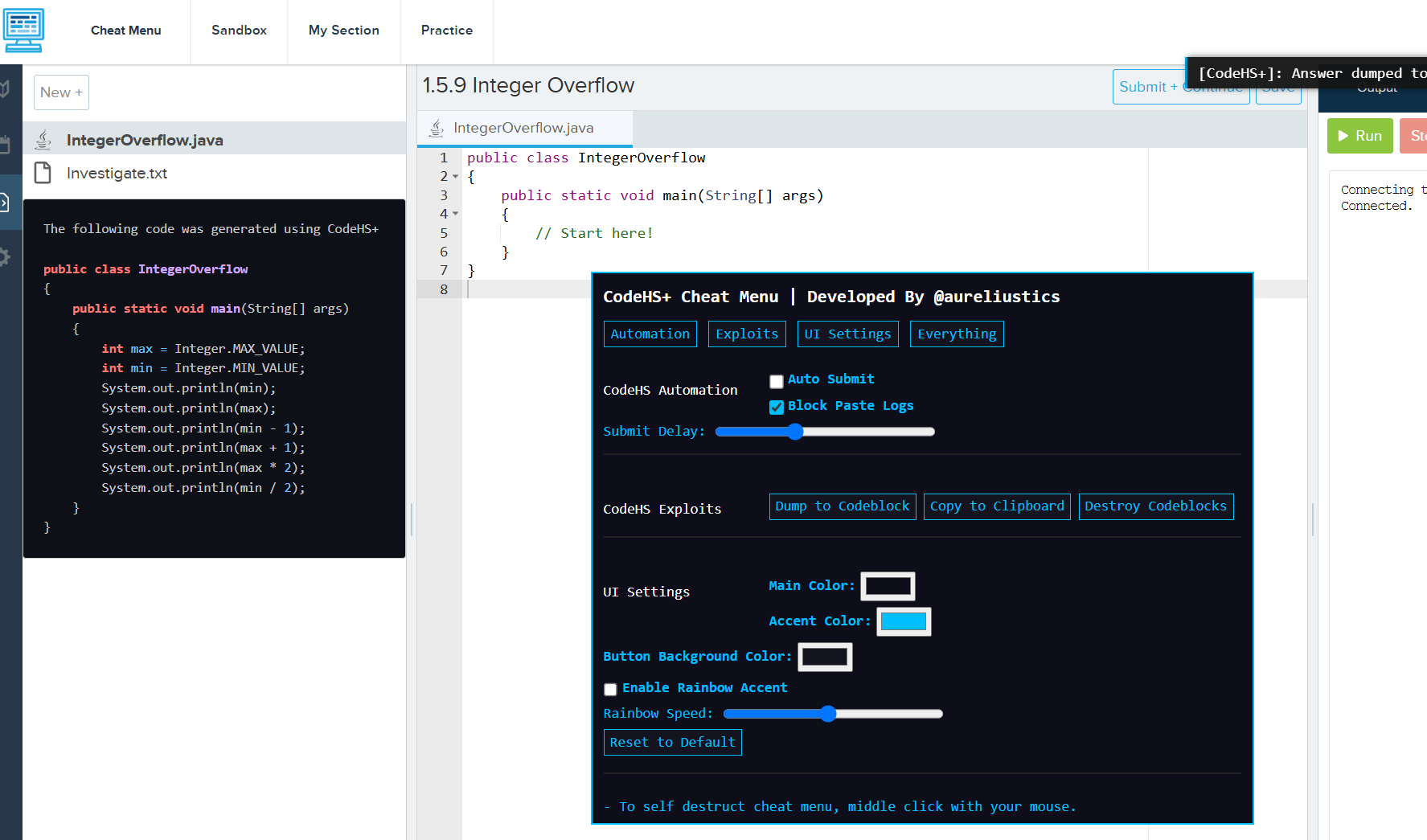

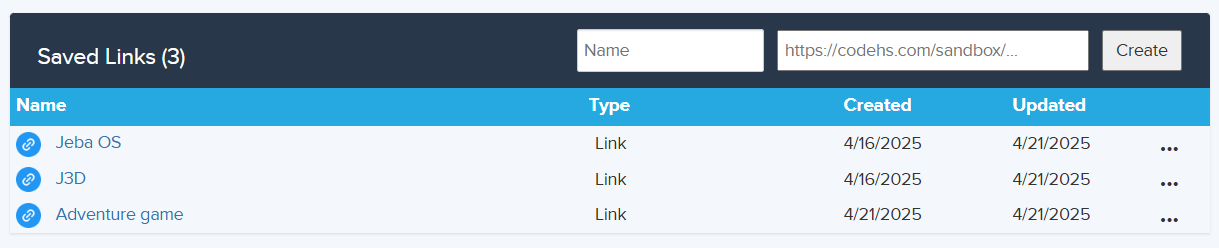
Adds general utility and quality of life to CodeHS. Currently the only features are saving sandbox links to collaborate on CodeHS easier, showing assignment answers in a codeblock or copying to clipboard, some color customization to the cheat menu, displaying the amount of time you spent in a sandbox. The cheat menu is built with stealth in mind. There is a self destruct button (middle click to activate) to destroy cheat menu and codeblock. This makes it harder to get caught by teachers. If you like this repository, a star would be greatly appreciated, thank you.
- If you just want to cheat on your assignments without installing anything:
- Copy the cheat menu script here, control + A then control + C on your keyboard
- Go to your CodeHS assignment and right click, click inspect then navigate to the "Console" at the top of inspect element
- Type "allow pasting" into the console then press enter
- Control + V to paste the cheat menu script then enter and you should have the cheat
- The only caveat with this installion method is you have to keep pasting the script into the console for every assignment or refresh, so its better to do method 2.
- You need the Tampermonkey extension for the cheat menu and misc CodeHS+ features to load automatically.
- Install Tampermonkey here
- Make sure you enabled developer mode in chrome extensions, and gave UserScript access to Tampermonkey (right click icon -> "Manage extension")
- Click on the Tampermonkey extensions icon once installed and press "Dashboard"
- Click the + icon to the left of "Installed Userscripts"
- If you want to have updates to come with your install (recommended), replace the initial code with the following:
- If you don't want updates to come with your install, simply paste this script into tampermonkey instead.
- Go to CodeHS and make sure the script is running. You should see a red (1) icon on the Tampermonkey icon.
// ==UserScript==
// @name         CodeHS+
// @namespace    http://tampermonkey.net/
// @version      2.5
// @description  Adds general utility and quality of life to CodeHS.
// @author       Aureliustics
// @icon         https://www.google.com/s2/favicons?sz=64&domain=codehs.com
// @match        https://codehs.com/sandbox*
// @match        https://codehs.com/student/*/section/*/assignment/*
// @grant        GM_setValue
// @grant        GM_getValue
// @grant        GM_xmlhttpRequest
// @require      https://raw.githubusercontent.com/Aureliustics/CodeHS-Plus/refs/heads/main/main.js
// @resource     CheatMenu data:application/json,{"stealth":false}
// ==/UserScript==- Navigate to https://codehs.com/sandbox
- Create, rename, delete, or copy link for sandboxes you save.
- When doing an assignment, you should see a new button next to the CodeHS logo on the top left.
- It is called "Cheat Menu". Clicking on it will toggle the menu
- When are you in a sandbox, it will display the amount of time you have spent inside of it in real time. This does save and sync across tabs.
- If either the Cheat menu or saved links UI is not showing up, refresh the page. This usually happens because Tampermonkey doesn't reinject upon subdomain changes.
- You might notice some buttons and text be affected by the CSS in the cheat menu aka they will have the same color. It's an easy fix but it isn't super severe so I might just leave it for now.
CheatFlagType: {
                CHEAT_TOOL_DETECTED: 6,
                CHOICES: [[0, "None"], [1, "Not Enough Time Spent"], [2, "Insufficent History"], [3, "Copy and Pasted"], [4, "Similarity to Solution"], [5, "Similarity to Student"], [6, "Cheat Tool Detected"]],
                COPY_AND_PASTED: 3,
                INSUFFICENT_HISTORY: 2,
                NONE: 0,
                NOT_ENOUGH_TIME_SPENT: 1,
                SIMILARITY_TO_SOLUTION: 4,
                SIMILARITY_TO_STUDENT: 5,
                STRINGS: {
                    0: "None",
                    1: "Not Enough Time Spent",
                    2: "Insufficent History",
                    3: "Copy and Pasted",
                    4: "Similarity to Solution",
                    5: "Similarity to Student",
                    6: "Cheat Tool Detected"
                }
            }